ChartPanel is set up around the following elements:
- Projects are the top-level organizational element, and can belong to a single Team or be shared with multiple Teams.
- Services within a project each represent one action or URL (technically an “endpoint” in API terminology)
 Pages within a service are for admin tasks like viewing analytics or embed codes
 Channels within a service are configurable sections with fields that control the behavior of the service
- Services within a project each represent one action or URL (technically an “endpoint” in API terminology)
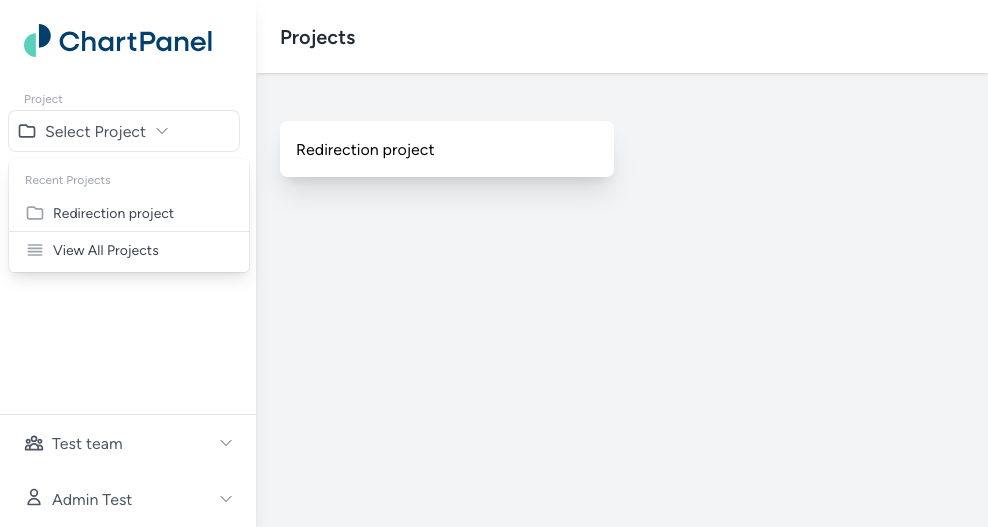
When you log in, you’ll typically be taken to a dashboard listing your available projects.
- Click the project tile in the main area, or
- Switch to a project any time by choosing it from the “project” dropdown in the upper left under the logo
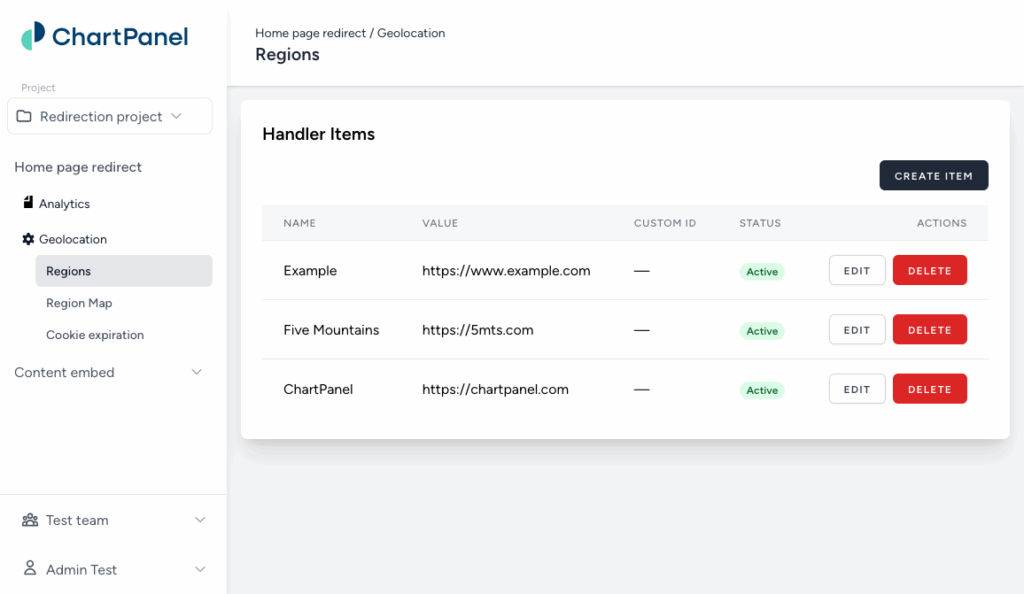
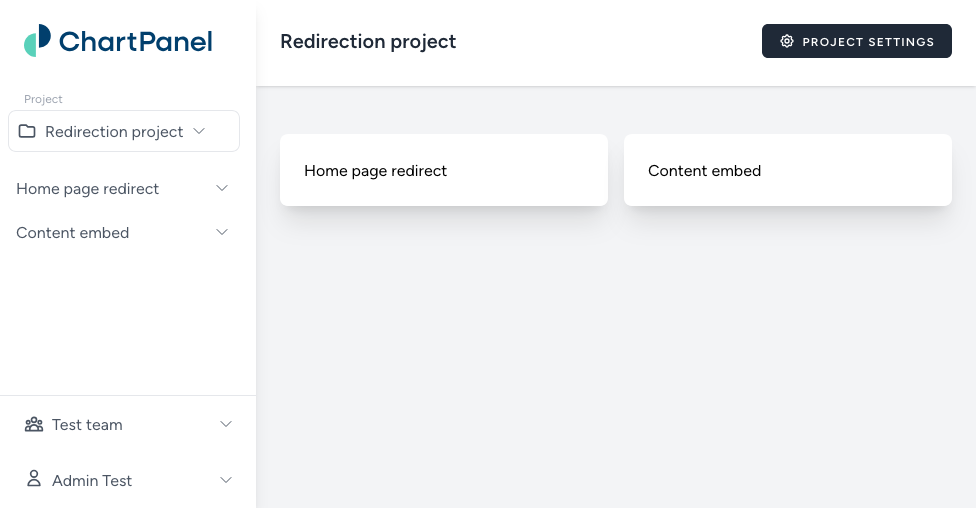
In a project (“Redirection project” in this example), you’ll see a list of services (“Home page redirect” and “Content embed” in this example). Each service corresponds to an action (e.g., a content embed, a redirect, a user lookup, an API endpoint, etc.).
Click a service tile in the main area or on the sidebar to view its pages and settings.
In the sidebar under the service name (“Home page redirect” in this example), you’ll see pages (with the icon) and channels (with the icon). Clicking on pages will show you the content of that admin page, and clicking a channel will expand any settings available to you for that channel.