You can manage who in your organization has access to the resources in ChartPanel. (If you need to share access to any resources with another organization, please contact support@fivemountains.co so we can enable sharing and they can manage their own users.)
Open team settings
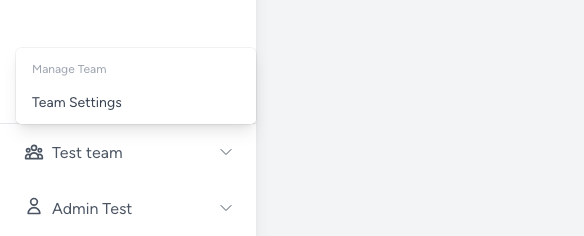
Click the name of your organization in the lower left and choose “Team settings”.
Add a new user
To add a new user, find the “Add Team Member” section.
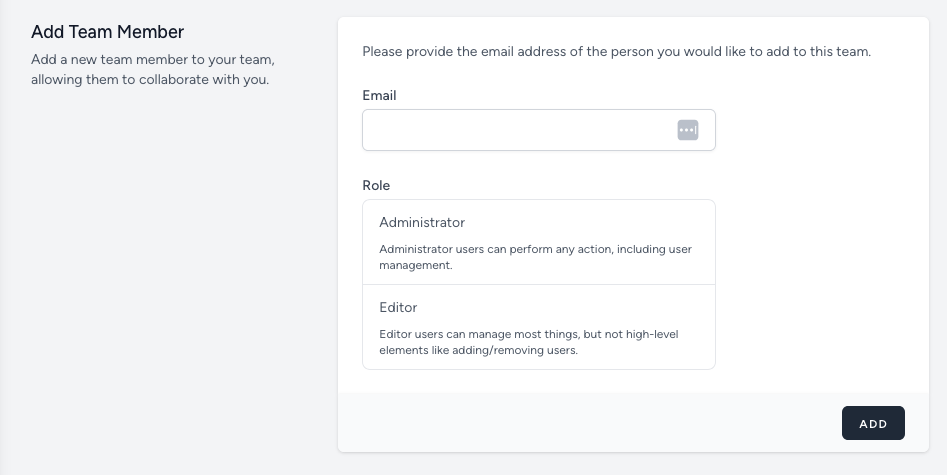
Enter the user’s email, and select a role.
- Administrators have full access to the resources in your organization, including adding, changing, and deleting other users (yourself included!)
- Editors can view resources and change settings, but cannot manage users
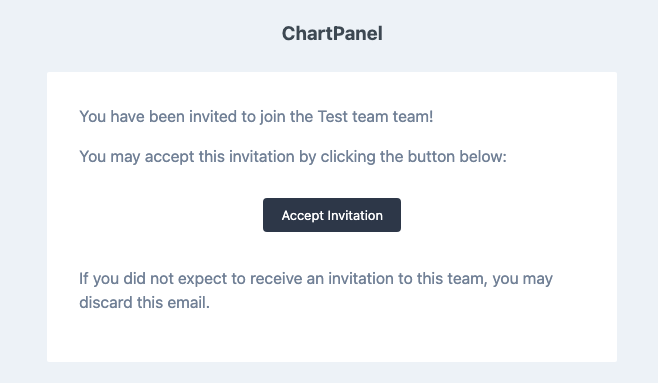
Click the “Add” button. An invitation will be sent to the email address you specified.
Pending new user invitations
If you have sent any invitations to users who have not yet accepted them, you will see them listed in the “Pending Team Invitations” section.

You can use the “Cancel” button at the right to deactivate the invitation. If the user clicks the link emailed to them after you do this, they will get an error message that the invitation is no longer active.
Manage existing users
Existing users are listed in the “Team Members” section.

You can remove a user from your organization’s team with the “Remove” button to the right.
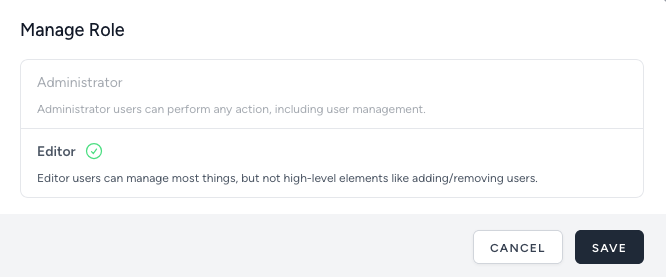
To change a user’s role, click the name of the role by their name (“Administrator” or “Editor”) and choose the new role you want that user to have.